
Orbit Trainer guide
Trainer settings: answer mode, fast mode, filtering, and shortcuts
Overview
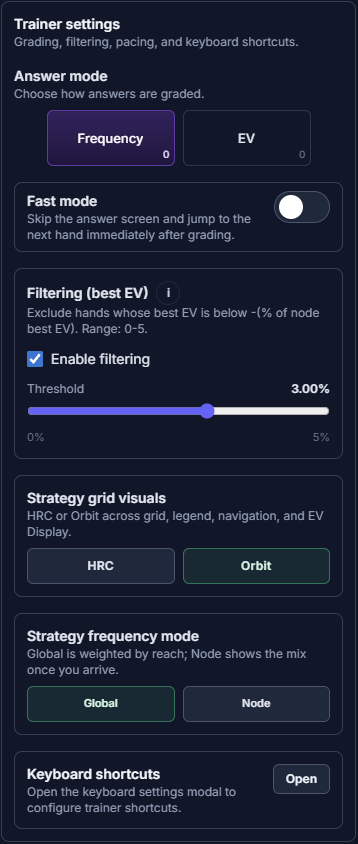
Open Trainer settings from the header Settings toggle or in Viewer at the bottom of Trainer tab, see Viewer screen map.
Answer mode
Answer mode lets you choose how answers are graded, Frequency or EV.
In Frequency mode, answers are graded against strategy frequencies. Optimal means your action matches a top-frequency line for the hand.
In EV mode, answers are graded against action EV. Optimal means your action matches a best-EV line for the hand.
Fast mode
Fast mode skips the answer screen and jumps to the next hand immediately after grading.
Filtering (best EV)
Filtering (best EV) excludes hands whose best EV is below −(% of the node best EV). Threshold range is 0–5%. For Current spot node-pool filters, see Preflop Trainer Filters.
Turn on Enable filtering, then set Threshold on the 0–5% slider.
Example : if best EV is 10 and the threshold is 1%, hands below −0.1 EV are excluded.
Strategy grid visuals and frequency mode
Strategy grid visuals switches HRC or Orbit across the grid, legend, navigation, and EV Display.
Strategy frequency mode chooses Global (weighted by reach across the whole tree) or Node (the strategy mix once you arrive at the node).
Open the Visual Mode tutorial for grid-style and frequency-scope examples.
Keyboard shortcuts
In Keyboard shortcuts, choose Open to launch Keyboard Shortcuts modal.
Bind Actions (first through fifth button, left to right) and Poker Buttons (Fold, Check/Call, Raise, Raise 2, and All-in).
What to remember
Open Trainer settings from the header Settings toggle. Choose Answer mode (Frequency or EV), turn on Fast mode to skip the answer screen, set Filtering (best EV) when you want losing hands dropped, and use Open under Keyboard shortcuts to bind actions.
Strategy grid visuals and frequency mode live in the same panel; open the Visual Mode tutorial for HRC, Orbit, Global Frequency, and Node Frequency depth.